Get started with Wonder MCP
Written By Aibek Yegemberdin
Last updated 6 months ago
Design and code have always lived in separate worlds. Wonder changes that. The Wonder MCP server gives your AI coding agent direct read and write access to your Wonder canvas - pull designs into code, or push code back into designs.
What you can do with Wonder MCP
What you can do with Wonder MCP
Once Wonder is connected to your coding agent, your agent can bridge the gap between your codebase and your designs. It can pull tokens, styles, and structure from your existing code and bring them into Wonder - so your designs always reflect what's actually built.
1. Bring your code's design tokens into Wonder
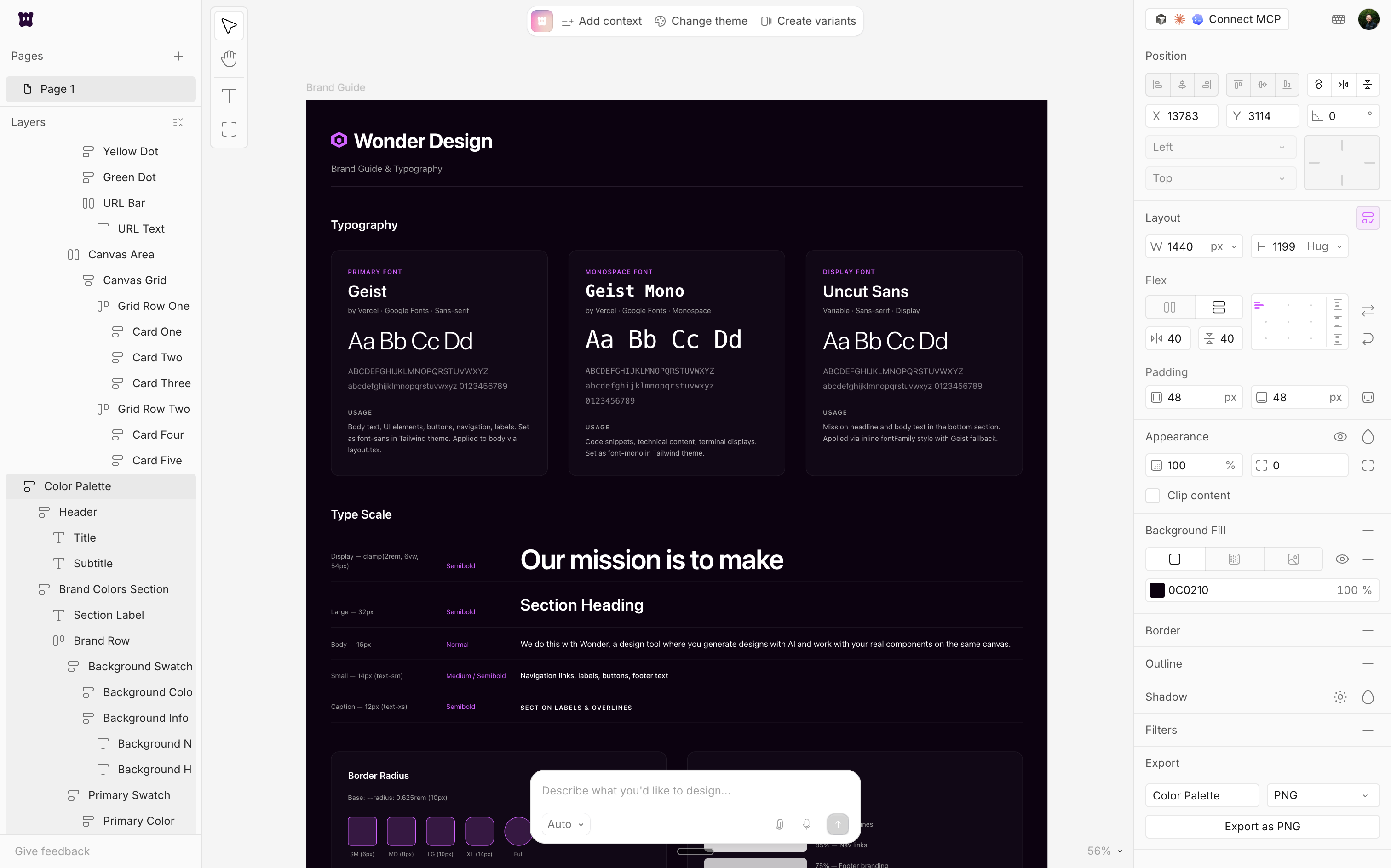
Prompt your agent with something like "Read my Tailwind config and codebase, then create a design in Wonder that uses my exact colors, typography, and spacing." Instead of manually recreating your design system on the canvas, the agent pulls your real tokens from code and designs with them directly - so your canvas matches your production styles from the start.
2. Design with your real codebase as context
If you already have a frontend codebase, your agent can use it as a reference while designing. Try "Look at my existing app's header component and design a new landing page hero in Wonder that's consistent with my current styles." The agent reads your code, understands your visual language, and generates designs on the canvas that feel like they belong in your product.
3. Go from design to code and back
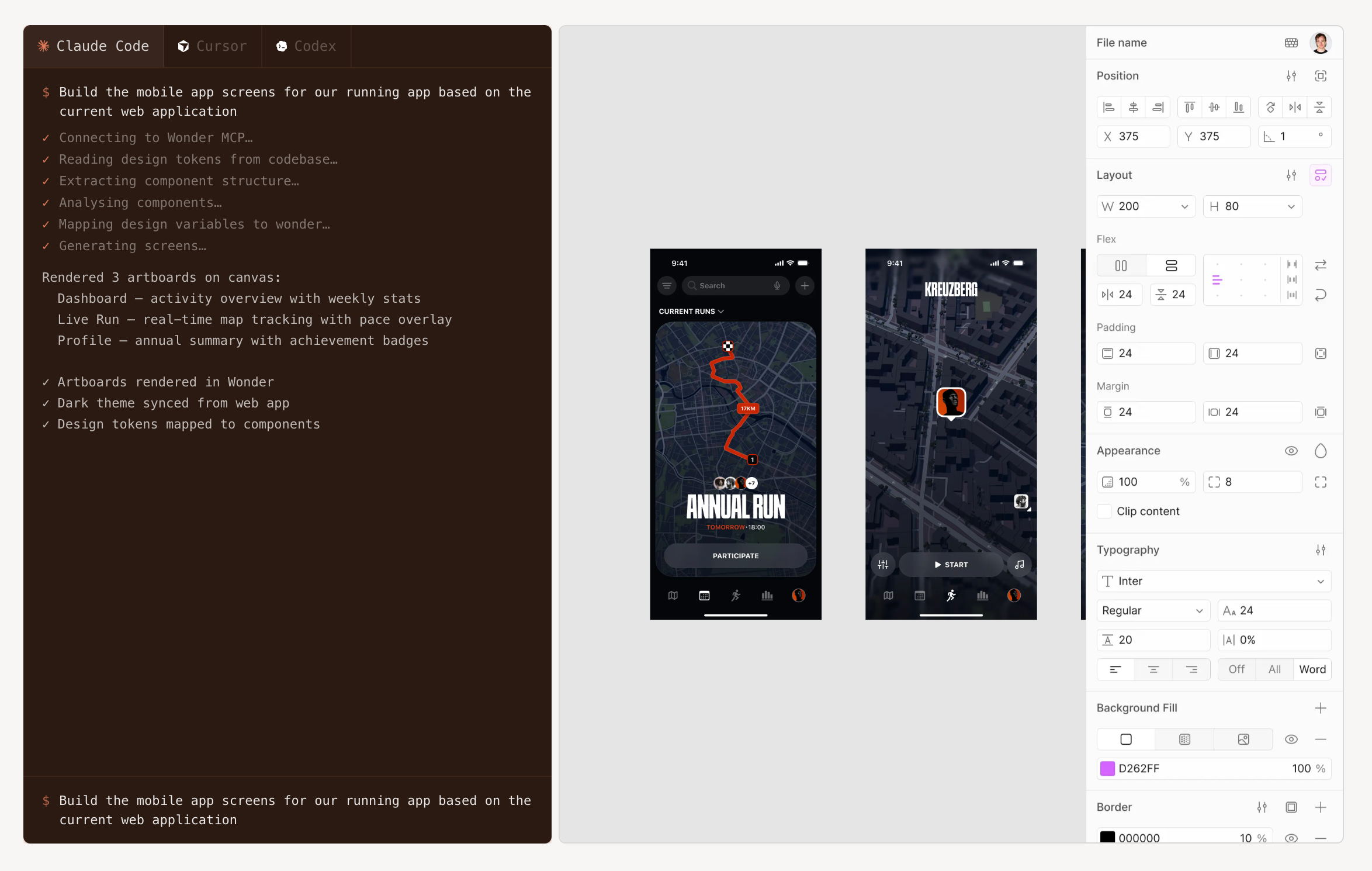
Design something on the Wonder canvas, then tell your agent to "Build this page as a React component with Tailwind." After you've iterated in code, push it back: "Take my updated component and create a matching design in Wonder so the canvas stays up to date."
The round-trip keeps your designs and code in sync without manual re-implementation on either side.
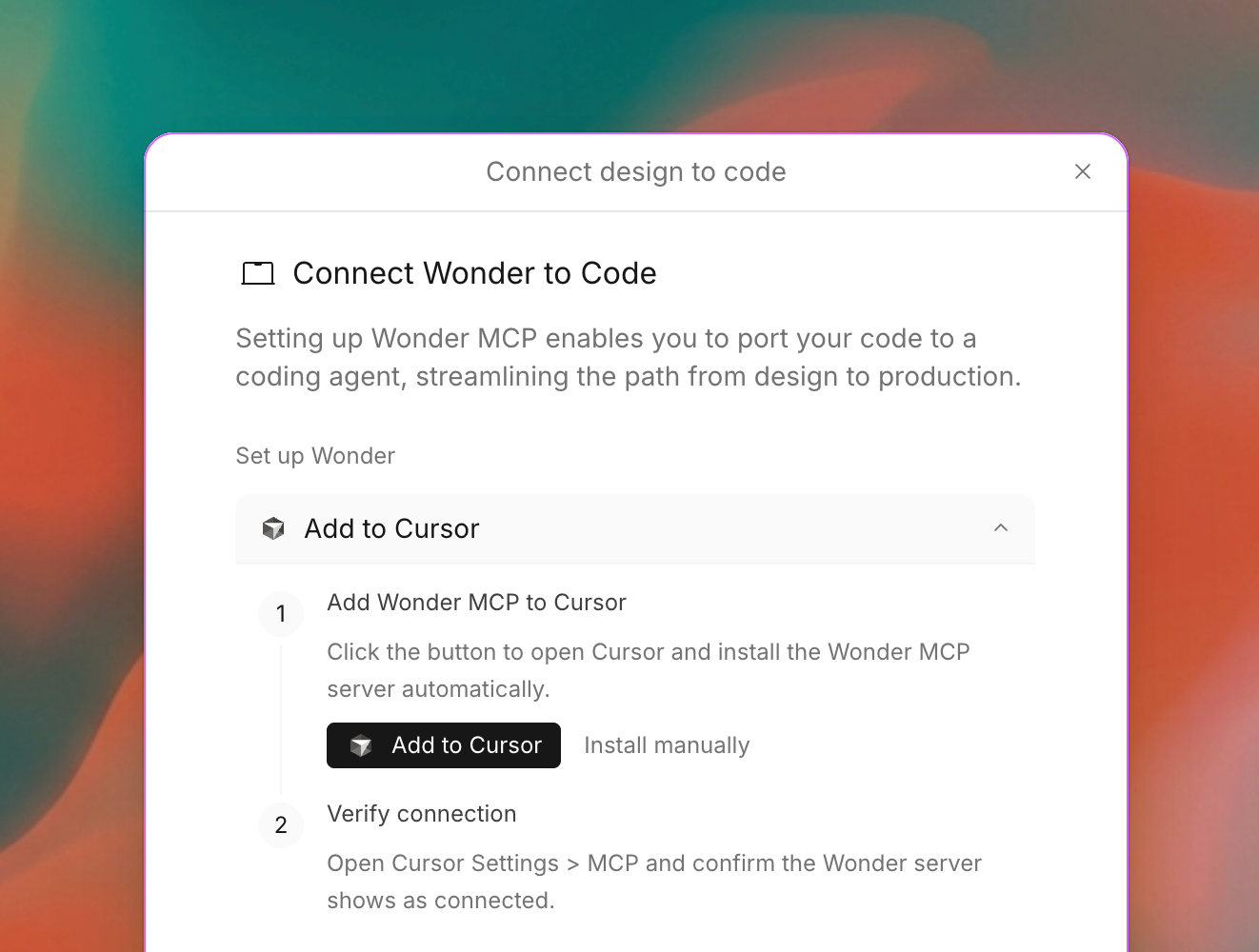
Add Wonder MCP to Cursor
Step 1: Add Wonder MCP to Cursor
Click the button below to open Cursor and install the Wonder MCP server automatically.
Or install manually: Copy the JSON below and add it to your Cursor MCP config at Settings > MCP, or paste it into ~/.cursor/mcp.json.
{
  "mcpServers": {
    "wonder": {
      "serverUrl": "https://mcp.wonder.so/mcp"
    }
  }
}
Step 2: Verify connection
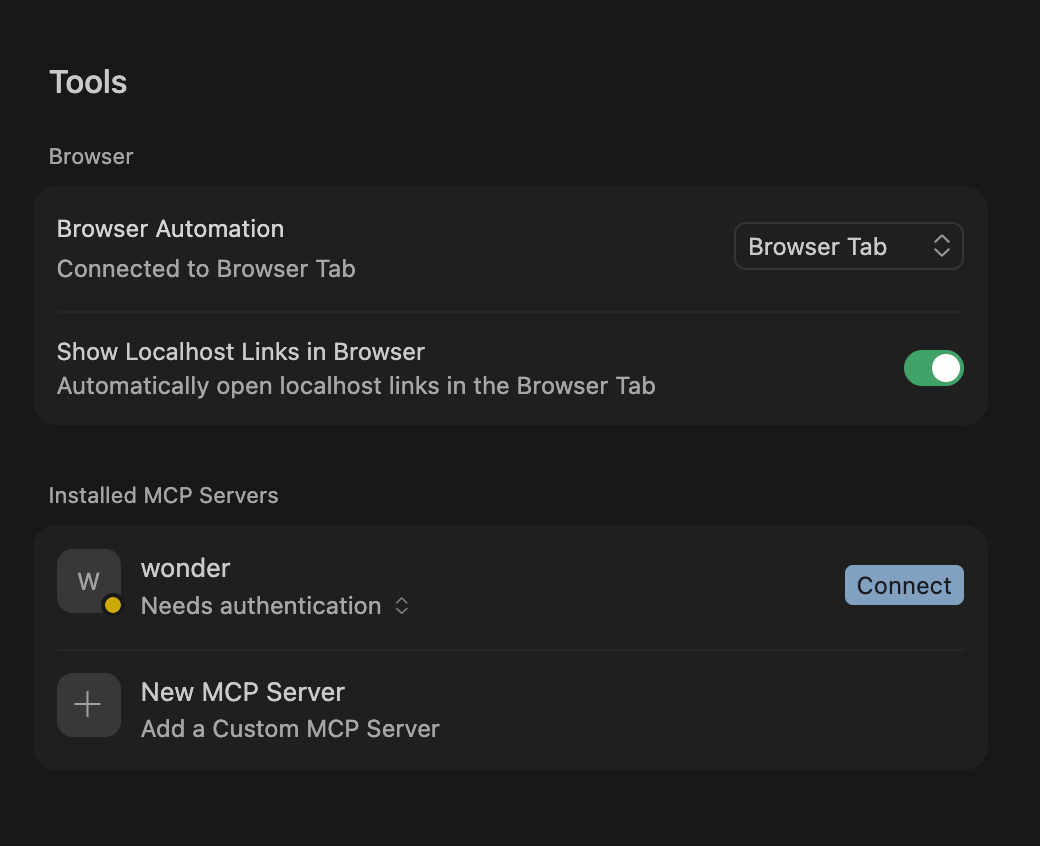
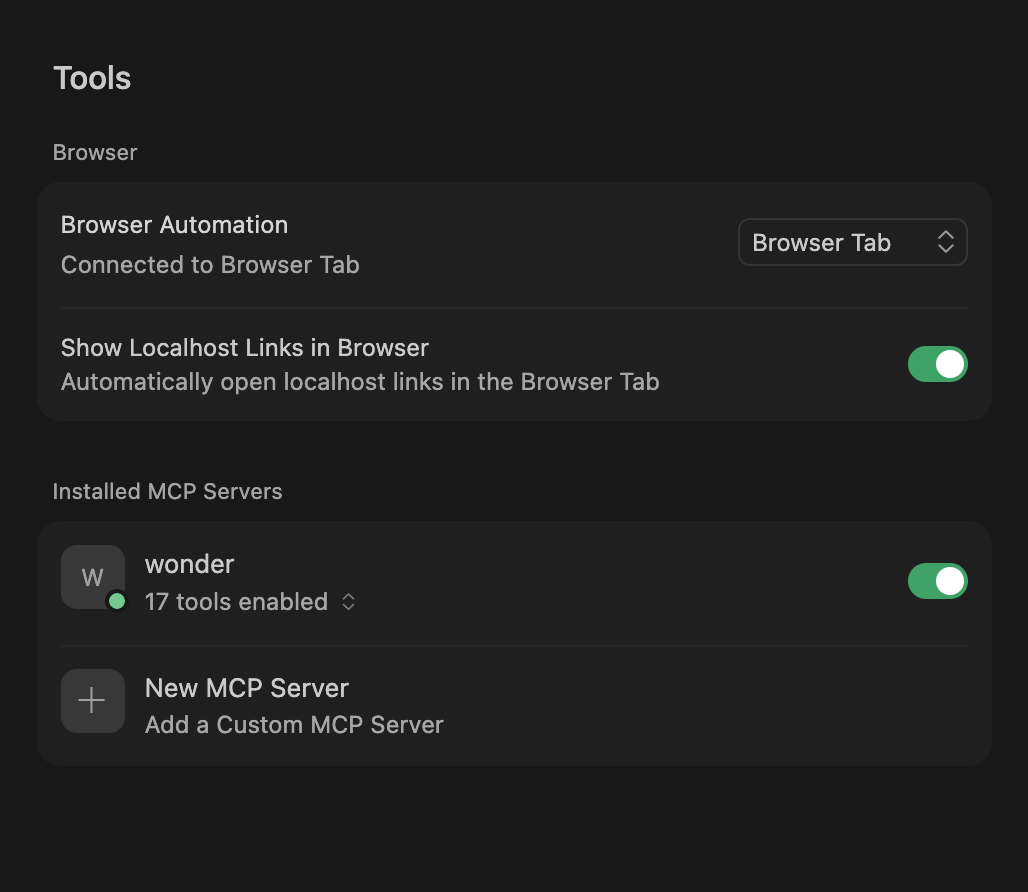
Open Cursor Settings > MCP and confirm the Wonder server shows as connected.
Step 3: Sign in to Wonder
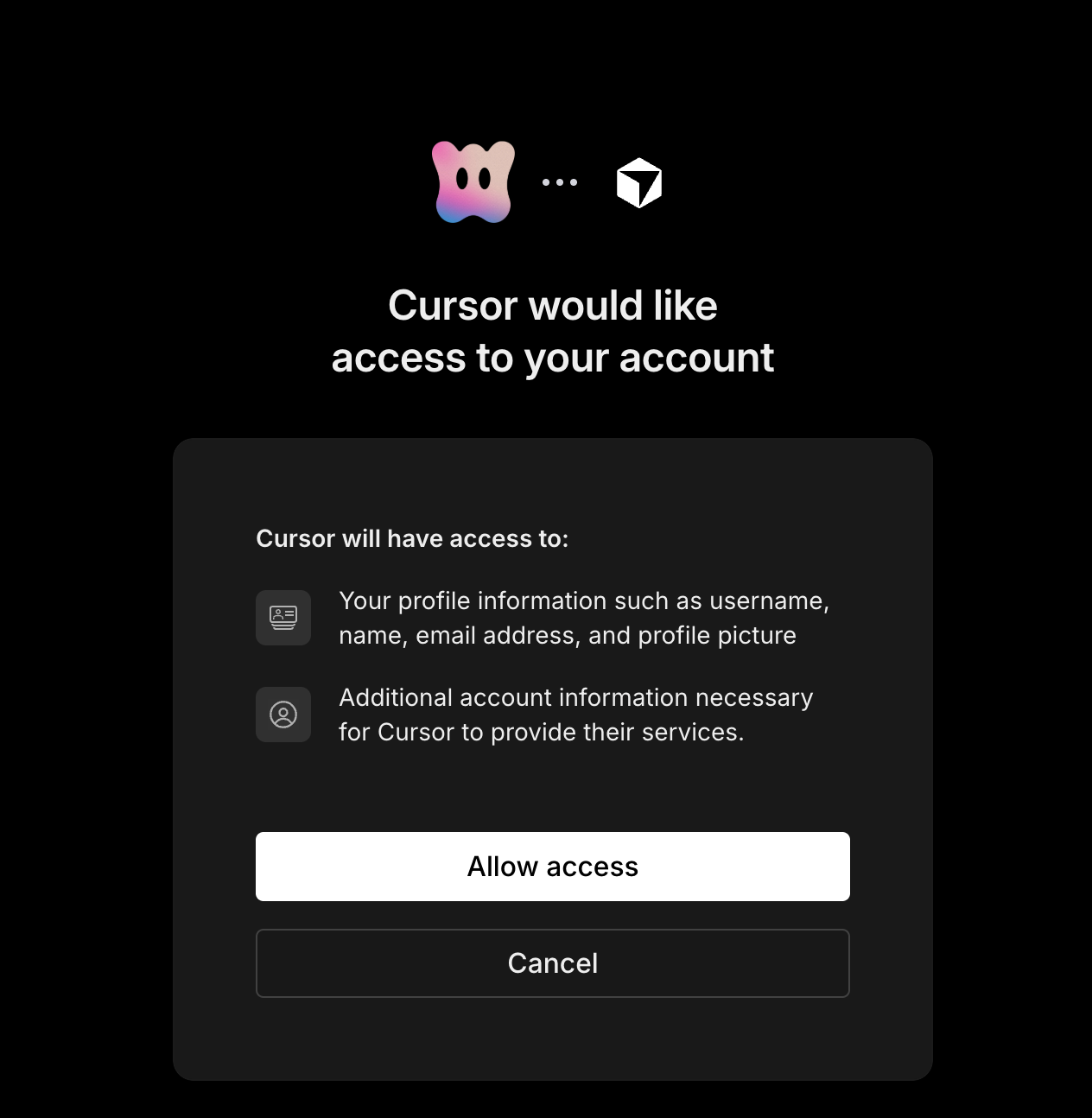
A Connect button will appear next to Wonder in your MCP settings. Click it and sign in to your Wonder account in the browser window that opens.
Step-by-step Overview
Step-by-step Overview
Claude Code
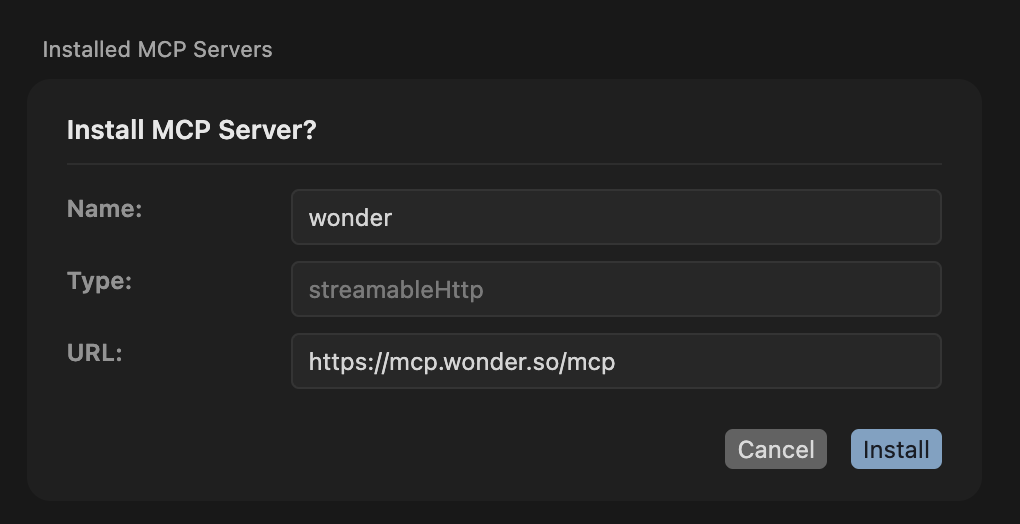
Step 1: Add Wonder MCP to Claude Code
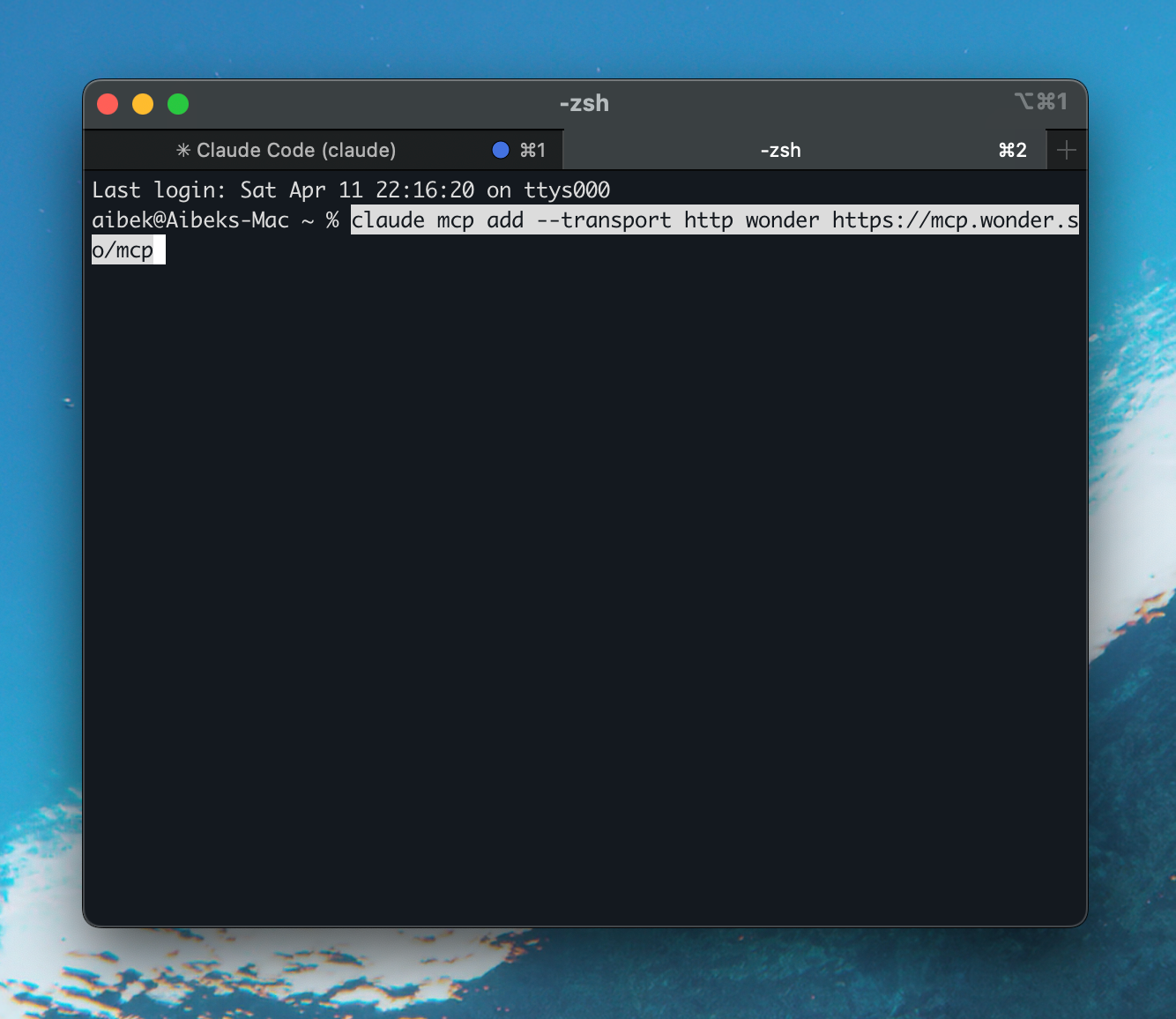
Run the command below in your terminal (not in Claude) to register the Wonder MCP server.
claude mcp add --transport http wonder https://mcp.wonder.so/mcpStep 2: Verify connection
Run claude mcp list to confirm the Wonder server appears.
Step 3: Sign in to Wonder
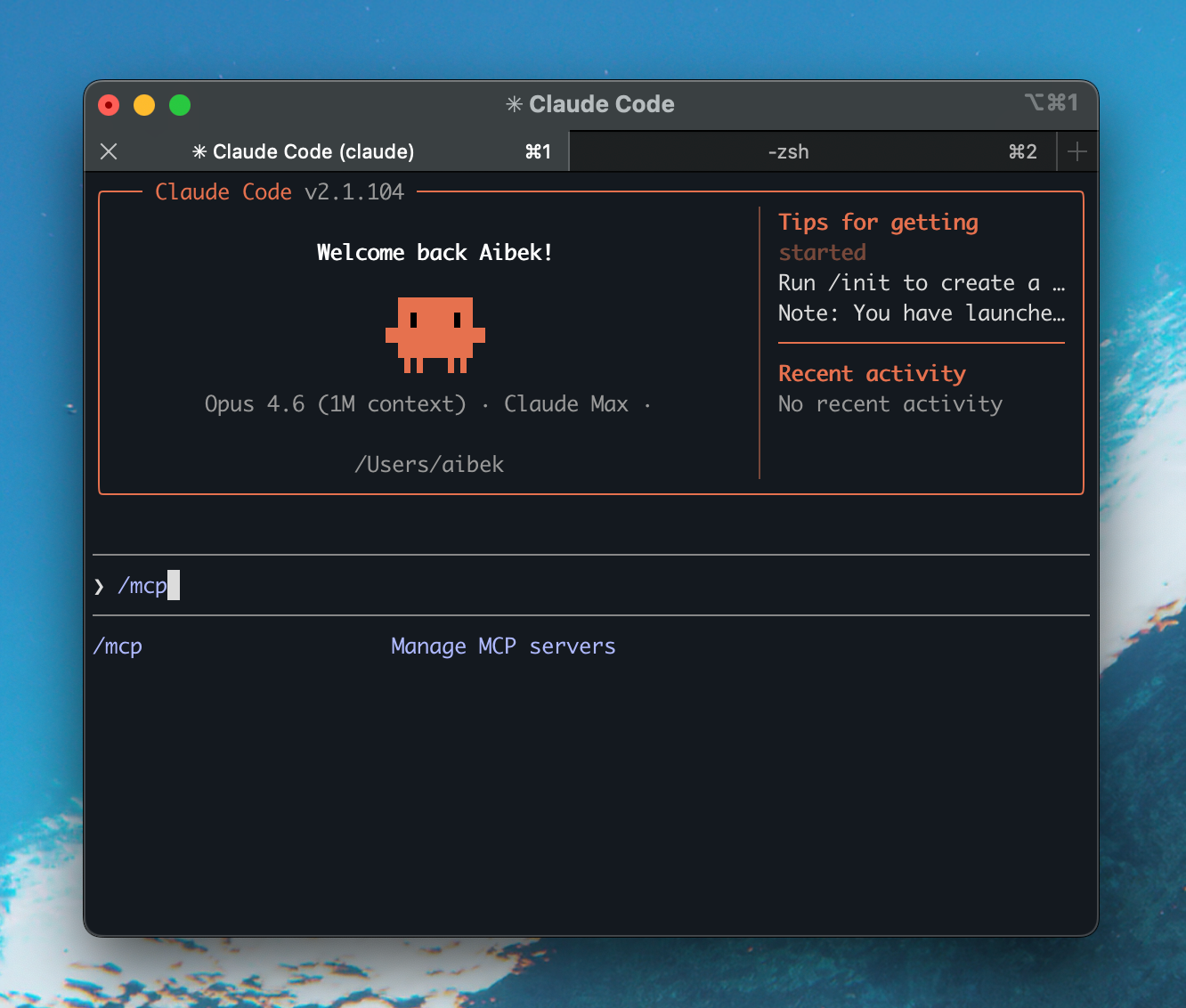
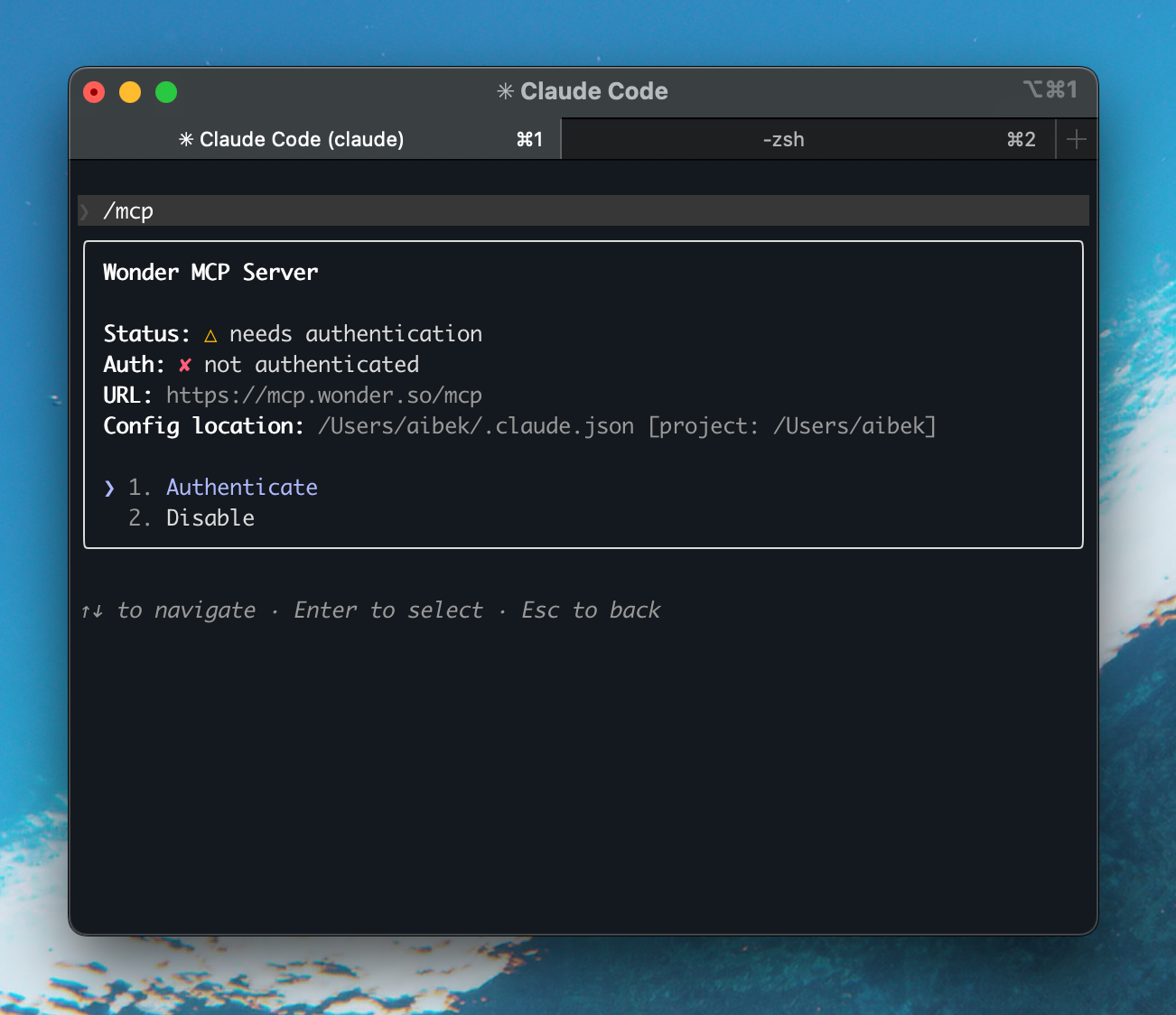
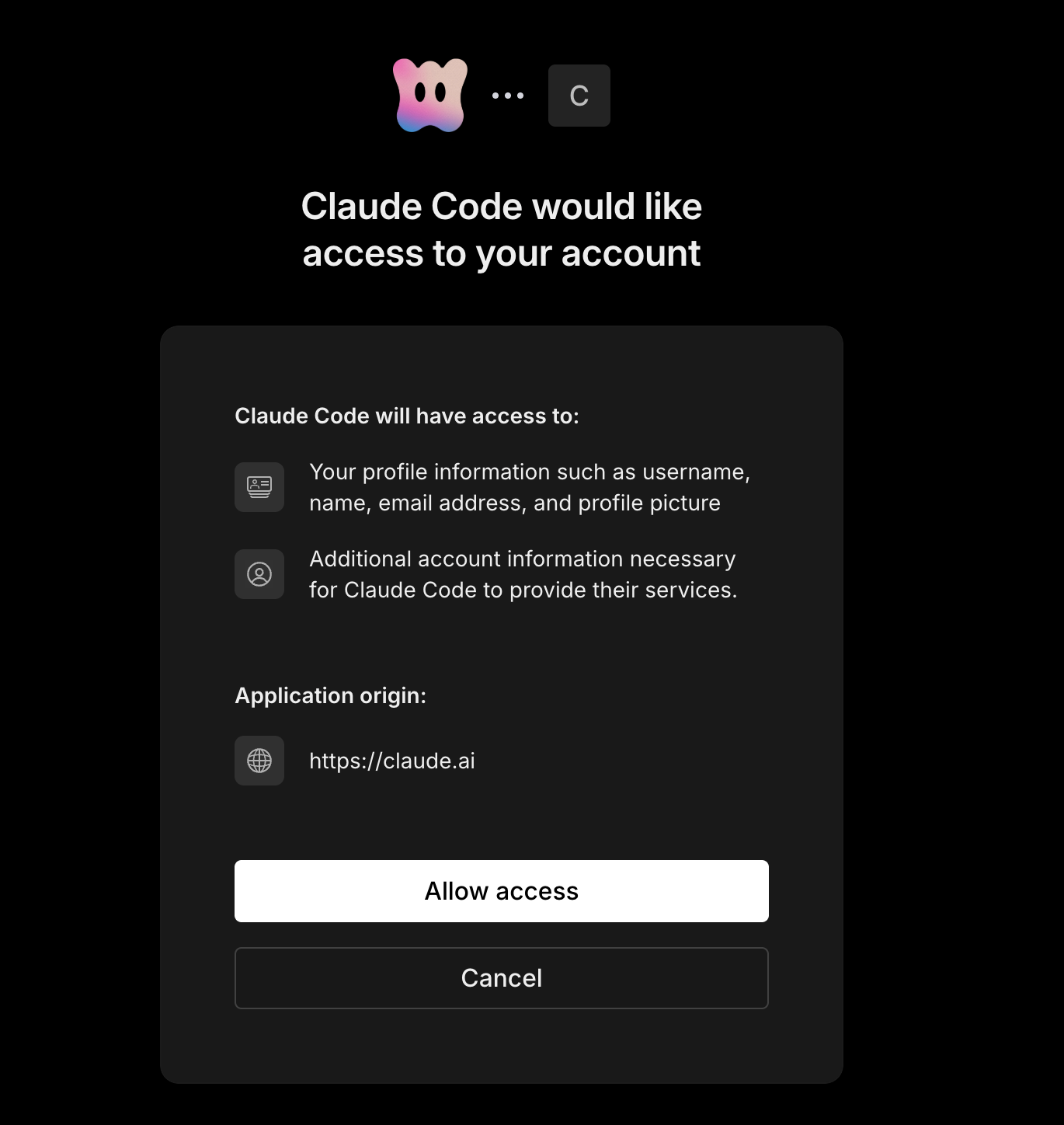
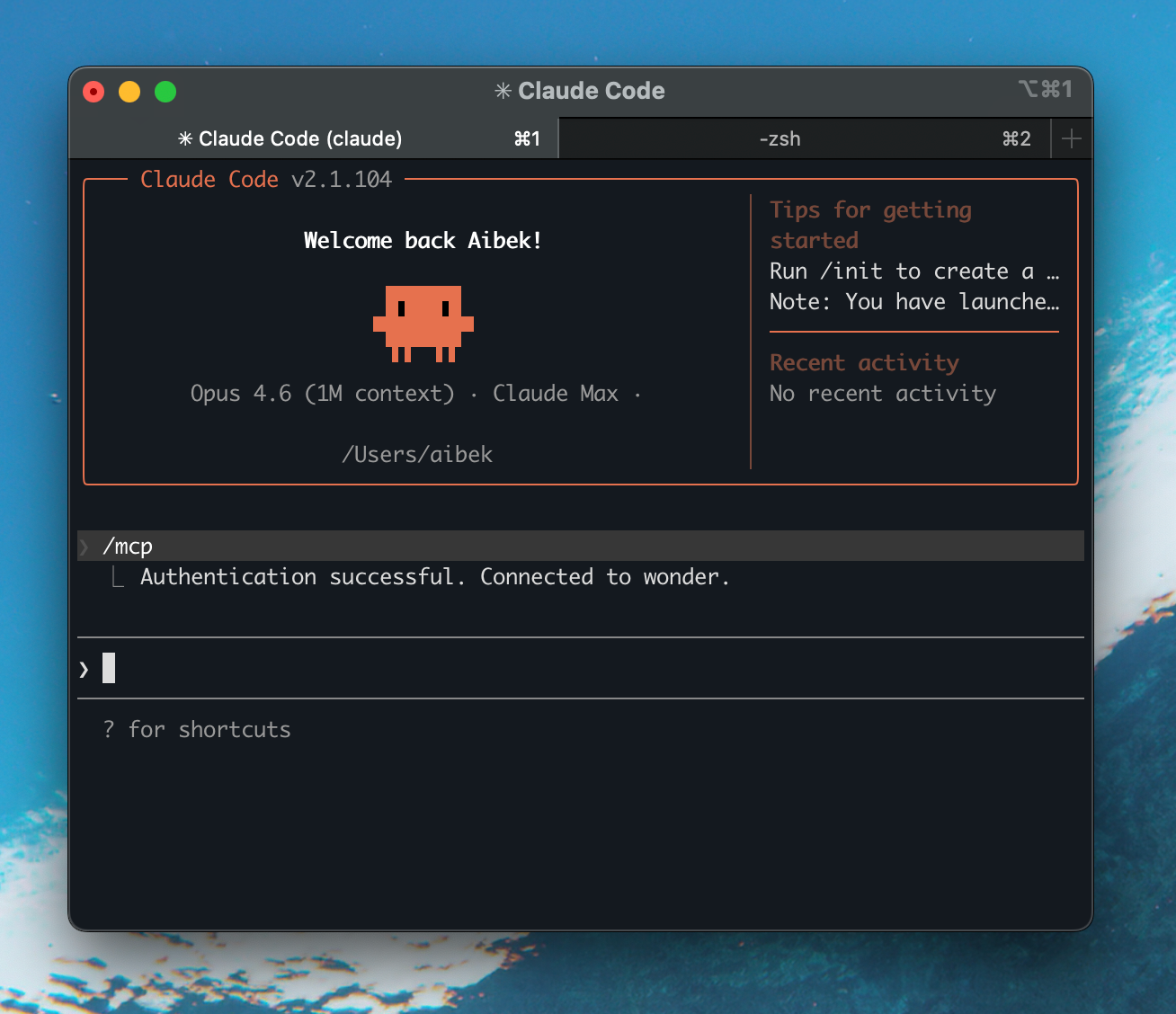
Open a Claude Code session and run /mcp. You should see Wonder in the list of MCPs. If you don’t see it, restart your Claude session. Wonder prompt you to sign in to your Wonder account in the browser. Once done, your agent is connected and ready to go. Tokens are refreshed automatically - you should only need to do this once.
Terminals can be confusing if you’re non-technical. If you have trouble setting up Claude Code, you can watch this tutorial here or ask an AI agent of your choice to help you set it up.
Step by Step Overview
Step by Step Overview
Claude Desktop
Step 1: Ensure Node.js is installed
Claude Desktop requires Node.js to run MCP servers. Verify by running node --version in your terminal.
Step 2: Add Wonder MCP to Claude Desktop
Open Claude Desktop Settings > Developer > Edit Config. This opens your claude_desktop_config.json file.
Your file right now probably looks something like this:
{
   "preferences": {
   "coworkWebSearchEnabled": true,
   "ccdScheduledTasksEnabled": true,
   "sidebarMode": "chat"
  }
 }
Add the Wonder MCP section so it looks like this:
{
  "mcpServers": {
    "wonder": {
      "command": "npx",
      "args": [
        "mcp-remote",
        "https://mcp.wonder.so/mcp"
      ]
    }
  },
  "preferences": {
    "coworkWebSearchEnabled": true,
    "ccdScheduledTasksEnabled": true,
    "sidebarMode": "chat"
  }
}
Save the file. The key things to get right: add the entire "mcpServers": { ... } block before the "preferences" line, and make sure there's a comma after the closing } of mcpServers.
Step 3: Sign in to Wonder
Fully quit and restart Claude Desktop. A browser window will open automatically asking "MCP CLI Proxy would like access to your account." Click Allow access. The browser will confirm "Authorization successful!" — you can close it and return to Claude.
Step 4: Verify connection
Check that the Wonder server appears as connected — look for the MCP indicator in the chat input area.
Codex
Step 1: Add Wonder MCP to Codex
Run the command below in your terminal to register the Wonder MCP server.
codex mcp add wonder --url https://mcp.wonder.so/mcp You can also configure it manually via config.toml.
Step 2: Verify connection
Run codex mcp list and confirm the Wonder server appears.
Antigravity
Step 1: Open your MCP config
In Antigravity, click the ⋯ menu in the Agent panel > MCP Servers. Then select Manage MCP Servers > View raw config. This opens your mcp_config.json file.
The file is located at:
macOS/Linux:
~/.gemini/antigravity/mcp_config.jsonWindows:
C:\Users\<USERNAME>\.gemini\antigravity\mcp_config.json
Step 2: Add Wonder MCP to Antigravity
Add the following configuration to your mcp_config.json file. Note that Antigravity uses serverUrl instead of url for remote MCP servers.
{
  "mcpServers": {
    "wonder": {
      "serverUrl": "https://mcp.wonder.so/mcp"
    }
  }
}
Step 3: Verify connection
Close and reopen Antigravity. Go to MCP Servers and confirm Wonder appears with its tools listed.
Lovable
Step 1: Open Personal Connectors
In Lovable, go to Settings → Connectors → Personal connectors. You can also click + in the prompt box and go to Connectors for quick access.
Custom MCP servers require a paid Lovable plan.
Step 2: Add Wonder as an MCP server
Click New MCP server. Enter Wonder as the name and paste the server URL:
https://mcp.wonder.so/mcp Select No authentication and click Add server.
Step 3: Verify connection
Wonder should now appear in your list of personal connectors. You can reference your Wonder designs directly in prompts.
Other MCP clients
If your client isn't listed above, you can set up Wonder manually. The server URL is:
https://mcp.wonder.so/mcp Most MCP clients accept a JSON config like this:
{
  "mcpServers": {
    "wonder": {
      "serverUrl": "https://mcp.wonder.so/mcp"
    }
  }
}
If your client doesn't support remote URLs natively, use the mcp-remote bridge:
{
  "mcpServers": {
    "wonder": {
      "command": "npx",
      "args": [
        "mcp-remote",
        "https://mcp.wonder.so/mcp"
      ]
    }
  }
}
This requires Node.js to be installed.
Try it out
Once Wonder is connected, you're ready to go. Open a chat in your agent of choice and try one of these prompts to make sure everything is working:
If you have an existing codebase:
"Read my Tailwind config and create a design in Wonder using my exact colors, typography, and spacing."
If you're starting fresh:
"Create a simple landing page hero in Wonder with a headline, subheadline, and a call-to-action button."
To test the round-trip:
"Look at my existing app's header component and design a matching hero section in Wonder."
Your agent will use the Wonder MCP tools to read and write directly to your canvas. You can then open Wonder to see the result.
FAQ
What does the Wonder MCP server do?
What does the Wonder MCP server do?
The Wonder MCP gives your AI coding agent direct access to your designs, components, and documentation inside Wonder. Instead of screenshotting or describing your designs, your agent can read the actual design data and generate code that matches what you've built on the canvas.
Do I need a Wonder account?
Do I need a Wonder account?
Yes. You need an active Wonder account with at least one project. The MCP server connects to your Wonder workspace, so the agent only sees designs you have access to.
Is the MCP server free?
Is the MCP server free?
Yes, the Wonder MCP server is free to use on all plans, including the free tier.
Does it work with Windsurf, VS Code Copilot, or Cline?
Does it work with Windsurf, VS Code Copilot, or Cline?
Yes. Any MCP-compatible client can connect to Wonder. Use the manual setup instructions above — the JSON config with "url": "https://mcp.wonder.so/mcp" works with most clients. For clients that don't support remote URLs directly, use the mcp-remote bridge method shown in the "Other MCP clients" section.
The Wonder server isn't showing up / tools aren't working.
The Wonder server isn't showing up / tools aren't working.
Try fully quitting and restarting your agent. Most MCP connection issues resolve after a restart.
The MCP server is connected but the agent isn't using it
The MCP server is connected but the agent isn't using it
This usually means the agent doesn't know to look at your Wonder designs. Try being explicit in your prompt, for example: "Use the Wonder MCP to pull my designs and generate the landing page layout." Most agents will discover the available tools automatically, but a nudge helps.
Can the agent modify my designs?
Can the agent modify my designs?
Yes. The Wonder MCP server provides both read and write access. Your agent can pull your designs as context and push new designs or updates back to the canvas.
I already added other MCP servers - will Wonder conflict?
I already added other MCP servers - will Wonder conflict?
No. MCP servers run independently. Just add the Wonder config alongside your existing mcpServers entries in the same JSON object. For example:
{
  "mcpServers": {
    "wonder": {
      "url": "https://mcp.wonder.so/mcp"
    },
    "other-server": {
      "url": "https://example.com/mcp"
    }
  }
}
Where can I report issues or request features?
Head to our Feature Requests board or drop a message in our Discord.
Was this helpful?
Still need help? Ask the team